Guides
How to Add Any Website to Your Home Screen (Android & iOS)
 By
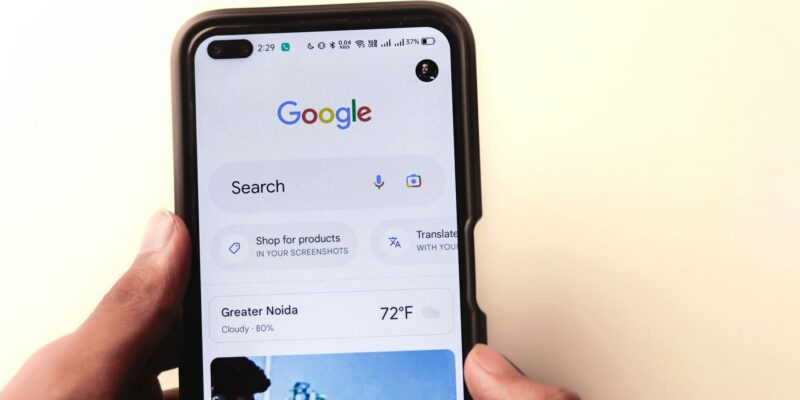
By Turning my favourite websites and blogs into Home Screen shortcuts is a easy way to enjoy my browsing experience.
Instead of typing in URLs or searching through bookmarks every time, I create shortcuts directly on my phone’s home screen to access these sites.
Both Android and iOS support this feature using their built-in browsers.
Below, I’ll find how to create these home screen shortcuts.
Add Websites to Your Home Screen on Different Browsers
You can create shortcuts from multiple browsers like Chrome, Edge, and Safari. These shortcuts behave like app icons and open directly into the selected browser.
Using Safari
- Open Safari on your iPhone.
- Visit the website you want to save.
- Tap the Share icon.
- Scroll down and select Add to Home Screen.
- Rename the shortcut to a name of your choice
- Select Open as Web App for a better layout.
- Tap Add in the top-right corner.
Using Google Chrome
- Open Chrome on your Android device.
- Go to the website you want to add
- Tap the three-dot menu in the top right.
- Select Add to Home Screen, then tap Add.
Using Microsoft Edge
- Open Edge on your Android phone.
- Navigate to the website to be added.
- Tap the three-dot menu at the bottom.
- Choose Add to phone or Add to Home Screen.
- Confirm by tapping Add.
Using Mozilla Firefox
Open Firefox and visit your site.
Tap the three-dot menu in the top right.
Select Add to Home Screen.
Tap Add to confirm.

You may also like

Guides
How to Shop from US Stores and Ship to Ghana using Golly Express
Ordering from Amazon, Best Buy, or eBay while living in Ghana is often difficult. Many ...

Guides
Why You Should Stop Using Your Phone on the Toilet, According to Scientists
Most people scroll through their phones while using the toilet, but recent research shows this ...

Guides
How to Use Live Speech on iPhone and iPad
Apple's Live Speech feature lets you type a message on your devices, which the device ...
More in:Guides

Guides
How to prevent Facebook from accessing your Photos
Meta is launching a Facebook feature that scans the photos on your phone, regardless of ...

Guides
Should You Use a Blue Light Filter on Your Phone
How to use a blue light filter on iPhone, Android, and PC to reduce night ...

Guides
How to take ‘proper’ care of your power bank
People carry power banks daily to charge their smartphones and other gadgets on the go. ...